

The Backup You Don't Have Is the One That Ends Your Career
Secure backup and recovery for macOS and Windows 11, and why "I have a copy somewhere" is a bet you will eventually lose.


Here’s a bet I want you to take.
I’ll put a single hard drive on the table. On it: every photo you’ve ever shot. Every master track. Every raw video file. Every invoice, contract, and client list. Your whole creative life, on one piece of spinning metal or one chip of flash memory.
Now I roll the dice. Drive failure. A laptop stolen from a coffee shop. A spilled coffee. A ransomware screen demanding $1,800 in Bitcoin. A single bad click on an email that looked like it came from a gallery.
If I roll the wrong number, it all goes away. Not “we’ll recover most of it.” Gone. The wedding you shot last spring. The album you spent eight months mixing. The footage from a shoot you can never reshoot because the location is closed and the light will never be that good again.
Would you take that bet?
Because if you’re running on one copy of your files, you already have. You take it every single day. And here’s the verdict I’m going to spend the rest of this piece proving: the house always wins. Not “might.” Always. Hardware fails, thieves steal, and bad guys encrypt — the only variable is the date. The artists who walk away whole aren’t lucky. They just refused to play.
Let me show you three of them.
Three Scenarios
EXHIBIT A: THE PHOTOGRAPHER WHO SLEPT FINE
Maya shoots weddings. Two hundred gigabytes a weekend, sometimes more. One Tuesday her MacBook wouldn’t wake up — the screen lit, the fan spun, and then nothing. The internal drive was dead. No warning, no clicking, just a flat line.
Ten years ago that was a career-ending Tuesday. For Maya it was an annoyance. Time Machine had been quietly copying her drive to an external disk every hour. iCloud and Dropbox held a second copy of her active client folders off-site. She bought a new Mac, ran Migration Assistant, walked the dog, and came back to her entire working life rebuilt — apps, files, settings, the lot. She delivered that weekend’s gallery on schedule. The client never knew anything happened.
Maya didn’t get lucky. She got boring. Boring is the whole strategy.
EXHIBIT B: THE MUSICIAN WHO BEAT THE RANSOM
Dave produces beats out of a spare bedroom on a Windows 11 machine. He clicked a link in an email dressed up as a sample-pack invoice. By morning every file on his PC had a new extension and a text note demanding payment to get them back. Ransomware.
Here’s what the bad guys didn’t count on: Dave kept an external SSD that he plugged in once a week and then unplugged. An air gap. The ransomware could only encrypt what it could reach, and it could not reach a drive sitting in a drawer. He wiped the machine, reinstalled Windows, and restored from the disconnected drive. He lost four days of work — the gap since his last backup — and not one finished track.
Four days stung. Four years would have ended him.
EXHIBIT C: THE VIDEOGRAPHER WHO HAD “A COPY SOMEWHERE”
Tomás is the cautionary tale. He shot a documentary over eighteen months. He told himself he was covered — everything lived on a single 8-terabyte external drive, the one good drive he trusted. “It’s all on there,” he’d say. One copy. One drive. One point of failure.
The drive died three weeks before his festival deadline. No backup, because the drive WAS the backup in his mind. He paid a data-recovery lab $2,400. They returned a fraction of the footage, corrupted in places. The film he could have made no longer exists. The one he scraped together is not the one he spent a year and a half building.
Tomás wasn’t careless with his craft. He was meticulous. He just confused having a copy with having a backup. They are not the same thing, and that confusion cost him the most important work of his life.
Three artists. Same dice. The two who built a real backup walked away. The one who trusted a single drive did not. That’s the case. Now here’s how you stay out of Exhibit C.

What Counts as a Real Backup? (The 3-2-1 Rule)
A real backup follows one rule that CISA and NIST both recommend specifically to survive ransomware: 3-2-1.
- THREE copies of your data (the working copy plus two backups).
- TWO different kinds of storage (for example, an external drive and a cloud service).
- ONE copy kept off-site or offline — disconnected, so a fire, a thief, or malware can’t take everything at once.
That last copy is the one that saved Dave. A backup that’s always plugged in is a backup ransomware can encrypt right alongside everything else. Disconnect it.
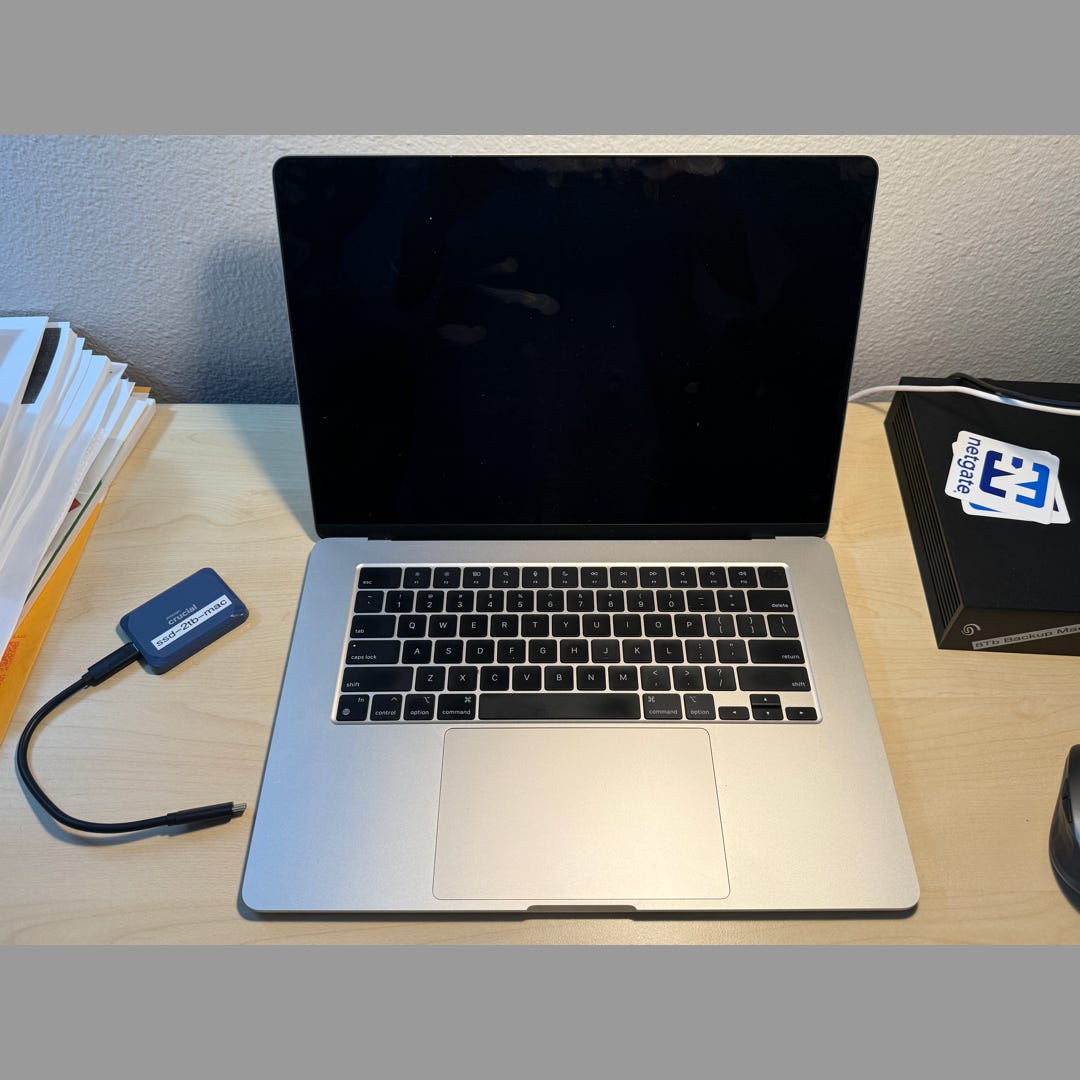
One more term worth knowing: your Recovery Point Objective, or RPO. Plain version — how much work can you afford to lose? If the answer is “no more than a day,” then your offline drive needs to be connected and updated daily. If “a week” won’t kill you, weekly is fine. You set the number. The dice don’t care, so you have to.
LOCAL DISK BACKUPS: THE COPY YOU CONTROL
A local backup is a physical drive you own, sitting in your home or studio. It’s the fastest to restore from and the only copy that works when the internet doesn’t.
Buy an external drive at least twice the size of the data you’re protecting. Set it to back up automatically. Then — and this is the part people skip — periodically unplug it. A disconnected drive is an air gap, and an air gap is the single cheapest defense against ransomware that exists. I run my own backup overnight with WiFi and Bluetooth off, then disconnect the drive in the morning.
CLOUD BACKUPS: THE COPY THAT SURVIVES THE FIRE
A cloud backup is your off-site copy. If your studio floods or burns or gets cleaned out, the cloud is what’s left. Services like iCloud, Microsoft OneDrive, Google Drive, Dropbox, and Box sync your files to their servers within minutes, which also shrinks how often you need to touch your local drive.
Two honest cautions. First, “synced” is not always “backed up” — if a file gets deleted or encrypted on your machine, some services dutifully sync that damage to the cloud. Know whether your service keeps version history (most do) so you can roll back to a clean copy. Second, a malware infection can ride along in a recent backup; a good backup history lets a technician restore you to an earlier, clean date. The cloud is your off-site copy, not your only copy. It’s the “1” in 3-2-1, not all three.

In my case, I do the majority of my work in Microsoft Office on macOS and Windows 11. I use OneDrive for my cloud data storage because it works on both platforms. Use what works for you and ignore the peanut gallery commentary around you saying otherwise.
Recovery

HOW DO I RECOVER A MAC FROM A BACKUP?
If you have a Time Machine backup, recovery is built into macOS and free.
For a few lost files: open Time Machine, browse back to the date before the loss, select your files, and click Restore.
For a dead drive or a fresh Mac: connect your Time Machine disk, reinstall macOS, and when Migration Assistant appears during setup, choose “Transfer from a Time Machine Backup.” Pick the date you want — ideally one from before any infection — and macOS rebuilds your files, apps, and settings to that point. Apple’s official walkthrough is at support.apple.com (search “Restore your Mac from a backup,” article 102551). Go for a walk with your dog or visit your favorite coffee house for about an hour or so. When you return, you are all set.
HOW DO I RECOVER FILES ON WINDOWS 11?
Windows 11 gives you three native, free paths, and the smart move is to combine them.
- WINDOWS BACKUP APP: Microsoft’s current default. It protects your Desktop, Documents, Pictures, Videos, and Music folders plus many settings to your OneDrive account, and restores them when you set up a new PC or sign back in.
- FILE HISTORY: now labeled a legacy feature but still available through Control Panel > System and Security > File History. It saves versioned copies of your libraries to an external USB drive or network location — your offline, air-gappable copy.
- SYSTEM IMAGE (Backup and Restore): a full snapshot of your entire PC — OS, programs, and files — that restores the machine to the exact state it was in. Found under Control Panel > Backup and Restore (Windows 7), and yes, that legacy name is still what Microsoft uses. Sigh.
To recover individual files with File History: open the folder, click the History button (or search “Restore your files with File History“), browse to the version you want, and restore.
Microsoft’s official guide is at support.microsoft.com (search “Backup and restore with File History“).
The Verdict
Every artist in this piece faced the same roll of the dice. The difference between Maya and Dave walking away whole and Tomás losing eighteen months of his life wasn’t talent, money, or luck. It was a decision they made on an ordinary day, long before the bad one — to keep more than one copy, on more than one kind of storage, with one copy out of reach.
You are going to face that roll too. Maybe next year, maybe next week. The drive will fail or the link will be clicked. When it happens, you’ll either be Maya, mildly annoyed, or Tomás, paying a lab $2,400 to hand you back fragments of something irreplaceable.
The bet is already on the table. The only thing you get to choose is whether the house collects.
Set up your backup today. Not because I told you to — I won’t tell you what to do — but because you’ve now seen the odds, and you know exactly how this ends if you don’t.